5 ways PowerToys makes Windows 11 easier
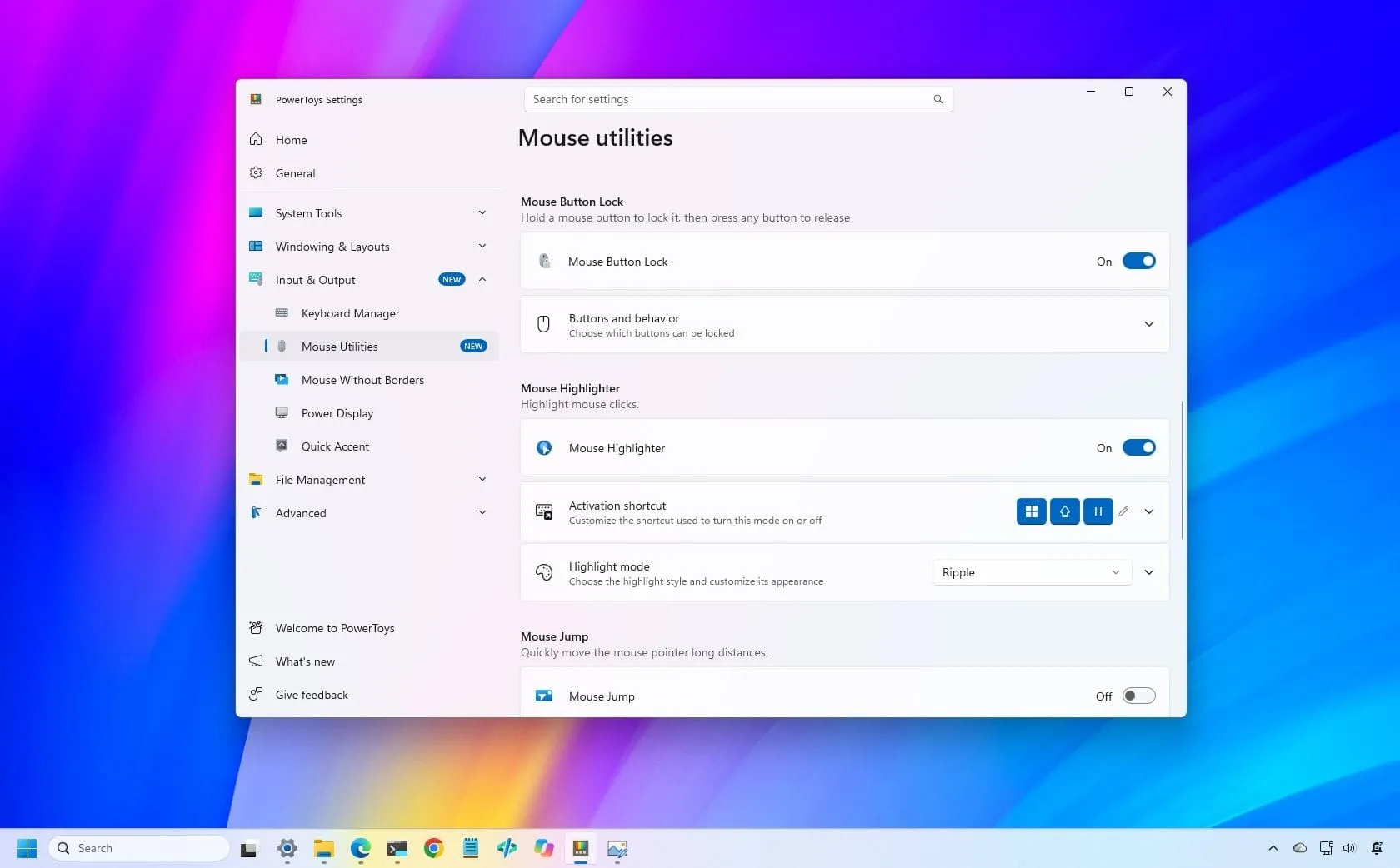
Windows 11 is constantly evolving, and while Microsoft handles the big updates, the real magic often happens in the tools that power users leverage. Enter PowerToys, the essential “Swiss Army knife” for customizing your desktop experience. Recently, the application rolled out version 0.102, bringing a suite of clever enhancements that turn mundane desktop tasks into smooth, effortless workflows.
This update isn’t just a simple version number change; it’s a masterclass in quality-of-life improvements. PowerToys has continued to expand its capabilities, ensuring that even advanced users have more control and efficiency than the operating system defaults offer.
Effortless Dragging with Mouse Button Lock
Tired of holding down a mouse button just to select a large group of files or drag an item across the screen? PowerToys has solved this friction point with Mouse Button Lock. Now, you can briefly press and release a mouse button to keep it virtually held down, allowing you to drag and select items with greater ease. This feature is fantastic for managing extensive selections and provides improved accessibility for those who struggle with sustained button presses.
Decluttering the View with CursorHide
Another major win is CursorHide, a tool designed to eliminate those annoying cursor interruptions. When you’re typing or focusing on a document, the cursor can often get in the way. CursorHide intelligently hides the mouse pointer during periods of inactivity or when you are actively typing, letting you focus entirely on your content without visual distraction. It’s the digital equivalent of a quiet workspace.
Streamlining Command Access
For those who rely on the Command Palette, this update rolls out a neat feature to enhance speed and organization. PowerToys now includes an improved Compact mode that lets you pin frequently used commands directly under the search bar. Access these pinned commands instantly using simple shortcuts like Alt + 1 through Alt + 9, or by selecting them quickly with Alt + Shift + number.
Unleashing Command-Line Power
The update also significantly expands PowerToys‘ command-line capabilities, opening up powerful automation opportunities. You can now execute CLI commands directly from Command Prompt or PowerShell to manage utilities and automate tasks. New commands like Advanced Paste, Light Switch, Settings, Peek, and PowerDisplay allow users to control system utilities and retrieve information in a script-friendly format. This is a game-changer for anyone looking to automate repetitive tasks.
Screenshot Dictation with ZoomIt
Finally, the integration with ZoomIt has been enhanced with a highly practical feature: screenshot dictation. When capturing a screenshot, users can now dictate a description of what they are seeing using voice input. This means you can simply speak what is on the screen, and ZoomIt transcribes your words, allowing you to paste the image and its description together instantly. It’s a brilliant way to quickly document visual information without needing to type lengthy captions.
PowerToys version 0.102 proves that the open-source ecosystem is continually filling the gaps left by the operating system. These clever, practical features make everyday Windows tasks significantly smoother, proving that even the simplest tools can deliver truly powerful quality-of-life upgrades.
Buy on Amazon
Credit