Cleaner faster File Explorer menu rolling out to Windows 11 Insiders
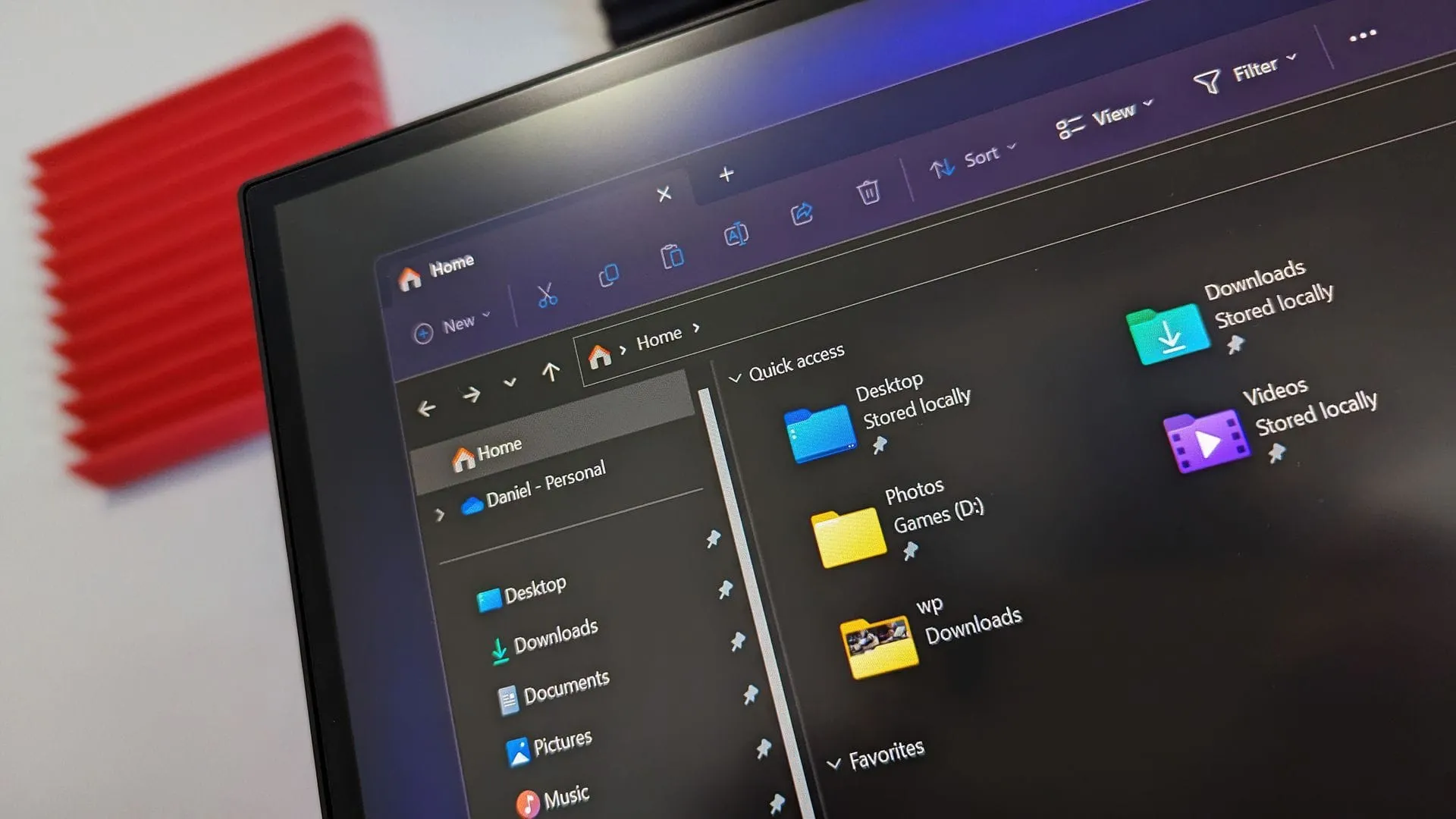
Microsoft is continuing its ambitious mission to declutter and personalize the Windows experience, rolling out a series of significant updates to Windows 11 Insiders that focus on making everyday navigation faster, cleaner, and more intuitive. These recent releases aren’t just technical patches; they represent a deeper commitment to making the operating system feel more responsive and tailored to individual user workflows.
One of the most immediate and impactful changes is the complete redesign of the File Explorer context menu. Recognizing that the right-click menu can often feel cluttered, Microsoft has introduced a streamlined experience that moves less common options out of the way while keeping frequently used actions instantly accessible. This refinement, coupled with improved file thumbnails in the Recommended section, aims to give users a right-click experience that is not only cleaner but also more responsive.
Beyond the familiar file management tools, the updates bring exciting enhancements to core system functions. The Settings experience itself has received performance improvements, promising quicker loading times in several scenarios. Furthermore, the Start menu is getting a personal makeover, offering users more control over their interface, allowing them to choose between small or large menu sizes and reorganize sections like the Recommended items.
A major focus of the experimental updates is seamless integration, particularly through the Quick Settings panel. Microsoft is introducing a new mobile devices experience that bridges the gap between the desktop and connected smartphones. Users can now manage crucial phone functions—like setting Do Not Disturb mode or adjusting ringer settings—directly from Quick Settings. This creates a simpler, faster way to manage mobile connectivity without breaking the workflow on the desktop.
The integration extends to network performance, too. Windows Insiders can now run an internet speed test directly within Quick Settings, providing real-time results for download speed, upload speed, and ping without needing to navigate away to a separate browser. This puts vital performance metrics right where users need them.
For those who value visual comfort, the Magnifier tool is evolving with new accessibility options. A new contrast theme toggle is introduced, allowing users to reduce screen glare by applying a tailored theme without inverting colors. This option offers a comfortable, darker interface while ensuring that photos, videos, and charts maintain their original, true colors.
Privacy and control are also taking center stage. Insiders now have granular control over camera, microphone, and location permissions for individual desktop applications, allowing users to manage access on an app-by-app basis rather than through a single, broad setting. This shift gives users greater visibility and control over their sensitive data.
Finally, the updates touch on future-facing capabilities, including new ways to manage Microsoft 365 subscriptions directly within Windows Settings, and improved family safety messaging, ensuring that the digital environment is not only efficient but also secure for the entire family.
Buy on Amazon
Credit
