Fix the texture glitch in CoD: Black Ops Cold War
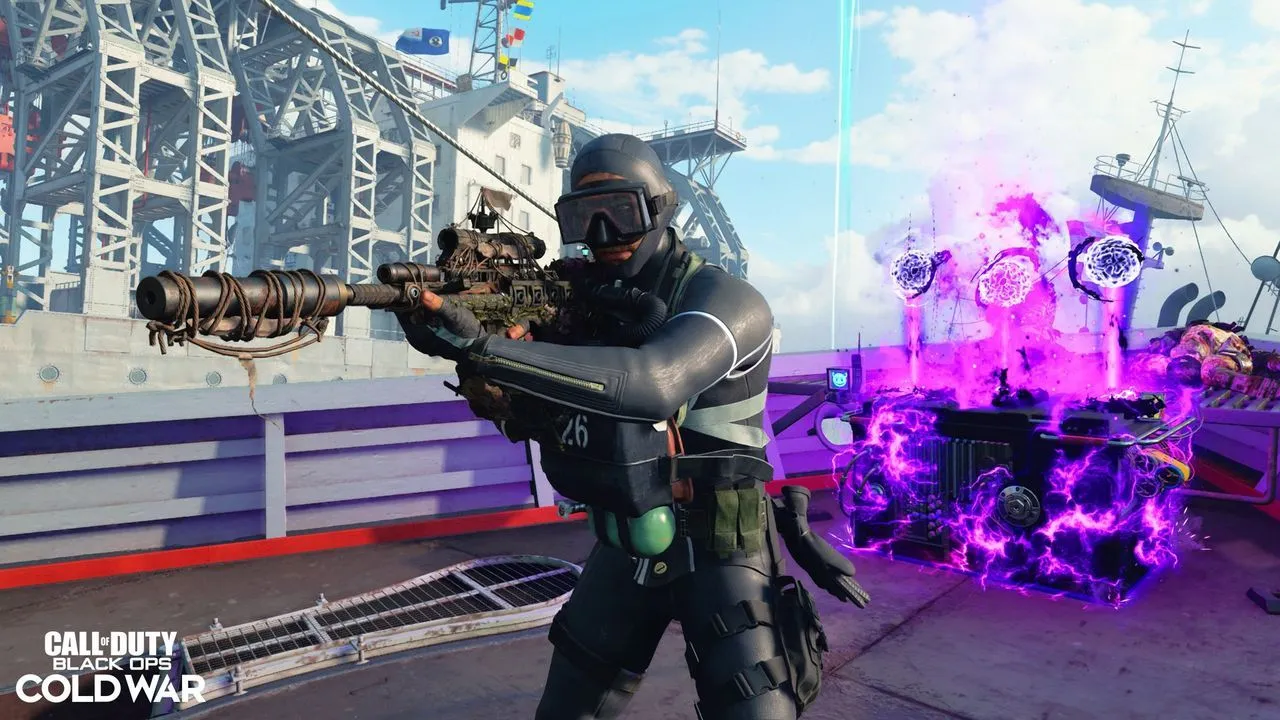
When a beloved title like Call of Duty: Black Ops Cold War joins the Xbox Game Pass lineup, a wave of new players floods the platform. But for some of us, joining the fray means encountering more than just new content; it means wrestling with some seriously frustrating technical hurdles, especially when playing on PC.
While console players generally sail by without a hitch, PC gamers often face unique issues. One persistent headache revolves around texture rendering. Players report that the game can look jarringly blocky, skies vanish entirely, or the overall presentation devolves into something resembling a PS1 experience. This isn’t just a matter of poor graphics; it often points to deeper system conflicts, frequently linked to memory leaks in the older game’s architecture.
It turns out that this visual glitch is an endemic problem on PC, regardless of your graphics card—whether you are using AMD or NVIDIA. Despite attempts to update drivers and adjust settings, the core issue remains stubbornly present, suggesting that a simple patch might be the only true cure.
Since the game is a few years old, official patches addressing these core rendering flaws are unlikely. However, determined PC enthusiasts have found a set of effective workarounds that significantly mitigate these problems, allowing players to enjoy the campaign and Zombies modes without constant visual distress.
The key to unlocking a smoother experience lies in tweaking your graphics settings and managing how your hardware handles resources. First, seriously consider dialing back your settings. Aim for medium settings and avoid using high resolution textures. As one user noted, turning off the HD texture pack often alleviates the texture conflicts immediately.
Next, delve into the advanced graphics settings. There is an option to set the targeted VRAM usage for the game. Adjusting this setting, often by lowering the target, can help alleviate texture-related issues, especially if you are not running on a top-tier system.
Perhaps the most impactful step involves disabling upscaling technologies like DLSS or Ray Tracing. While modern GPUs can handle demanding games, for a title from 2020, relying on upscaling can sometimes introduce these visual glitches. Turning off upscaling, combined with dropping settings to medium, has proven to be the most effective combination for many players.
To ensure peak performance, always make sure your GPU is dedicated solely to gaming. If you are streaming or running other applications, disabling hardware acceleration in browsers can prevent resource conflicts. By employing these adjustments, gamers can bypass the technical friction and dive into the action, enjoying the world of Black Ops Cold War with a much crisper, more stable visual experience.
Buy on Amazon
Credit
