Hold mouse button down automatically with PowerToys
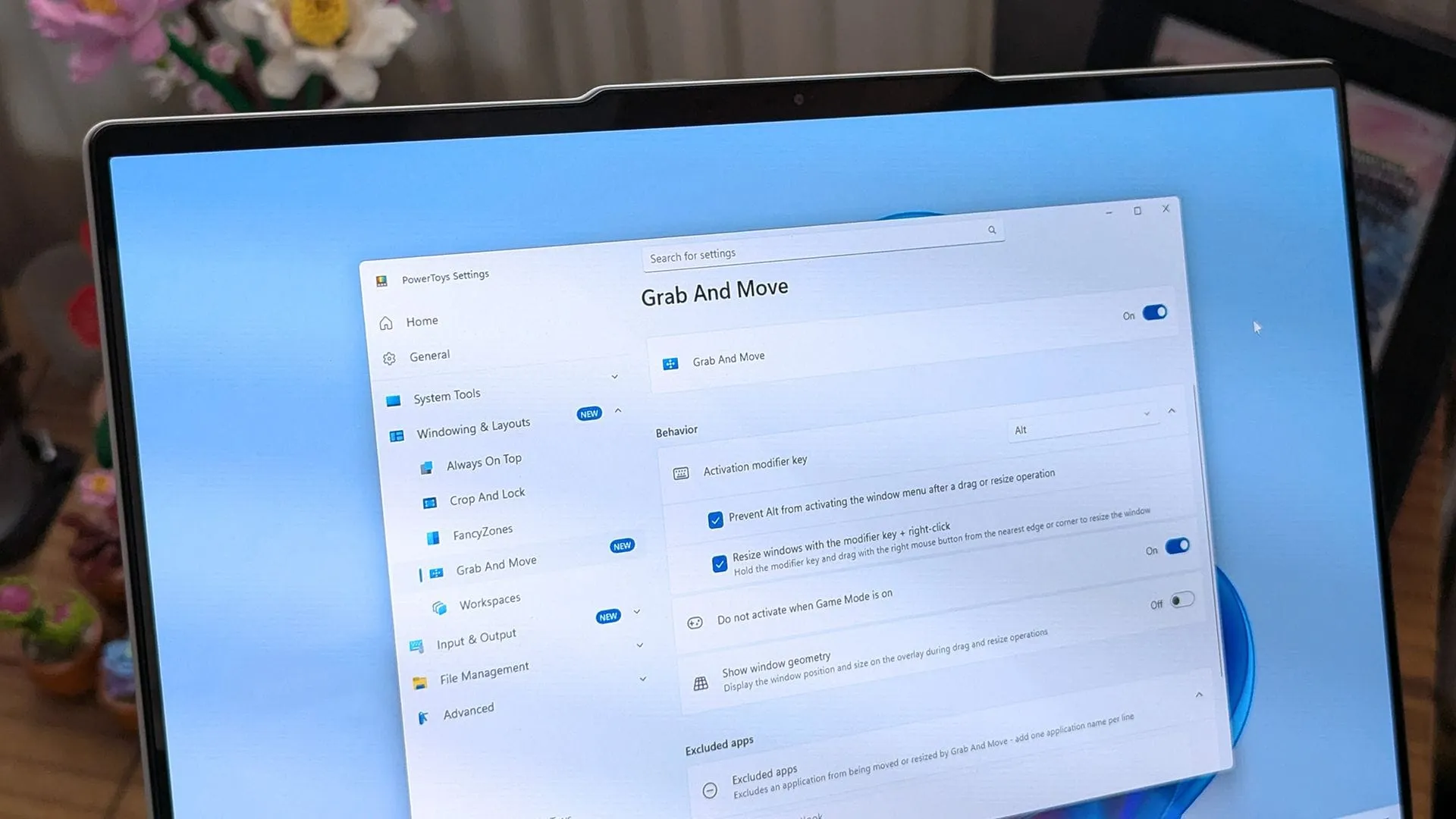
Windows isn’t just an operating system; it’s a sprawling landscape of possibilities. For those who truly want to tame that landscape—for power users and anyone who believes their computer should work for them, not against them—tools like PowerToys are game-changers. This collection of utilities, packed with efficiency hacks and deep customization options, isn’t just a collection of features; it’s a full-fledged toolkit designed to elevate the everyday computing experience.
The latest updates to PowerToys demonstrate why it remains one of the favorite applications for computing enthusiasts. With the recent release, developers have focused on making intricate functions simpler, more accessible, and significantly more powerful, touching everything from mouse manipulation to command-line scripting.
Imagine a scenario where you are deep into a demanding application or a complex drag-and-drop operation. Holding down a mouse button can be exhausting. Enter Mouse Button Lock, a feature that allows you to hold a button down for a moment and let the system treat it as permanently pressed. This simple tweak dramatically improves accessibility and reduces fatigue, making demanding tasks smoother for everyone.
For those moments when you need to focus without distraction, CursorHide steps in. This neat utility silently hides your mouse pointer after a period of inactivity, reappearing instantly when you move the cursor. It’s a subtle touch that brings a fresh sense of calm to your workspace, eliminating visual clutter when you need deep focus.
Beyond input control, PowerToys is revamping how you interact with Windows commands. The Command Palette, while powerful, can sometimes feel hidden. The new addition of a quick-access shelf solves this by bringing essential commands directly below the search box. It allows users to launch commands with simple shortcuts and drag-and-drop actions, making powerful commands just one keystroke away.
This enhancement is just one part of a massive overhaul. The updated Command Palette now boasts deeper functionality, including fuzzy search for lightning-fast options, a keyboard-first dock accessible via Win+Alt+J, and seamless support for the Copilot key. These changes integrate workflow and AI directly into the core Windows experience.
The scope of the PowerToys update extends into powerful terminal scripting as well. Users can now harness the power of the command line for automated tasks. Features like Advanced Paste allow for running actions without opening a graphical interface, and tools such as Light Switch and Peek offer streamlined ways to manage settings and preview files directly from the terminal.
Further enhancing multimedia and creative work is the ZoomIt update. It now seamlessly integrates snip dictation, letting you capture a screenshot while simultaneously describing what you are selecting using your voice. This combined functionality, paired with smooth zoom transitions, turns screen capture into a genuinely effortless process.
Finally, the Keyboard Manager receives a significant upgrade with support for tap-alone remaps, allowing keys to trigger actions without disrupting standard shortcuts. This, combined with a searchable key picker and sophisticated management tools, transforms keyboard navigation into a highly personalized, intuitive experience.
From measuring screens with the Screen Ruler to optimizing workspaces and managing environment variables, PowerToys is truly a hub of optimization. It proves that the future of computing lies in tools that empower us to customize our environment, turning complex tasks into smooth, effortless operations.
Buy on Amazon
Credit
