How to remap your Copilot key when the brand is dead
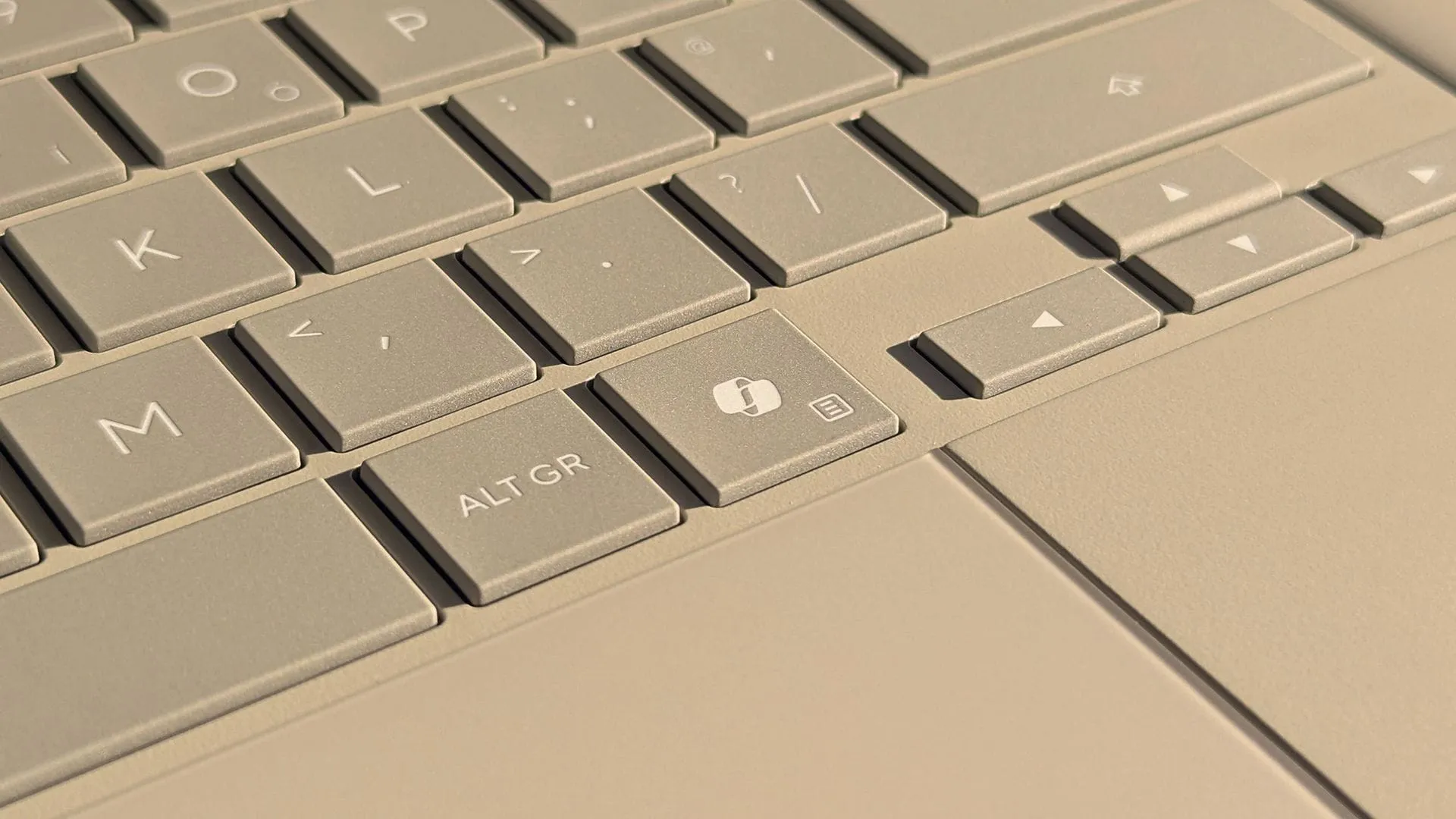
In a move that has left some enthusiasts scratching their heads, Microsoft has quietly abandoned the Copilot+ PC brand. Despite meeting all the technical specifications, the new lineup, including devices like the Surface Pro 12-inch and Surface Laptop 13-inch, will no longer carry that specific moniker.
This shift, while seemingly small, has created a peculiar situation for consumers who invested in these devices expecting an elevated AI experience. Many purchased these machines specifically for the branding, but the realization that the associated Copilot key offers limited functionality has led to some frustration.
The central dilemma for owners of these new machines is the presence of the Copilot key itself—a physical key that feels like a promise, but often proves to be just a dead end. While users can still enable or disable AI features within Windows 11, the dedicated Copilot key often feels superfluous, leaving many wondering what to do with the hardware they paid for.
Fortunately, the community has found ways to regain control over this feature, offering solutions for those who want to fully customize their keyboards and maximize their hardware investment. Whether you want to adjust default functions or completely overhaul the key’s behavior, there are several methods at your disposal.
One initial route involves using built-in Windows settings. Users can configure the key to perform basic functions, such as opening the Search bar, launching Copilot, or opening an application. This option is simple but offers limited control over advanced customization.
For those seeking deeper control, advanced users can turn to powerful third-party tools. PowerToys, a suite of utilities from Microsoft, includes a Keyboard Manager that allows for sophisticated shortcut remapping. By utilizing this feature, users can redefine the Copilot key’s function entirely, treating it as a standard shortcut rather than a fixed command.
A deeper dive into the process reveals that the Copilot key is essentially mapped to the F23 key on many keyboards. By employing PowerToys’ Keyboard Manager, users can utilize the classic editor to remap this shortcut to almost any desired combination, granting unprecedented control over input and function.
If the goal is to eliminate the visual presence of the Copilot logo entirely, some users opt for a physical solution. Applying custom keyboard stickers is one way to cover up the key and replace it with a design of their choice. While finding stickers that perfectly match the color of a specific keyboard can sometimes be a challenge, options are available on various retail platforms.
Ultimately, the narrative surrounding the Copilot key is a testament to user ingenuity. Rather than being locked into a single function, users have successfully leveraged system settings and powerful utilities to tailor their hardware experience, ensuring that their investment in cutting-edge PCs delivers exactly the level of control they desire.
Buy on Amazon
Credit