Install Windows 11 26H2 skip the wait time
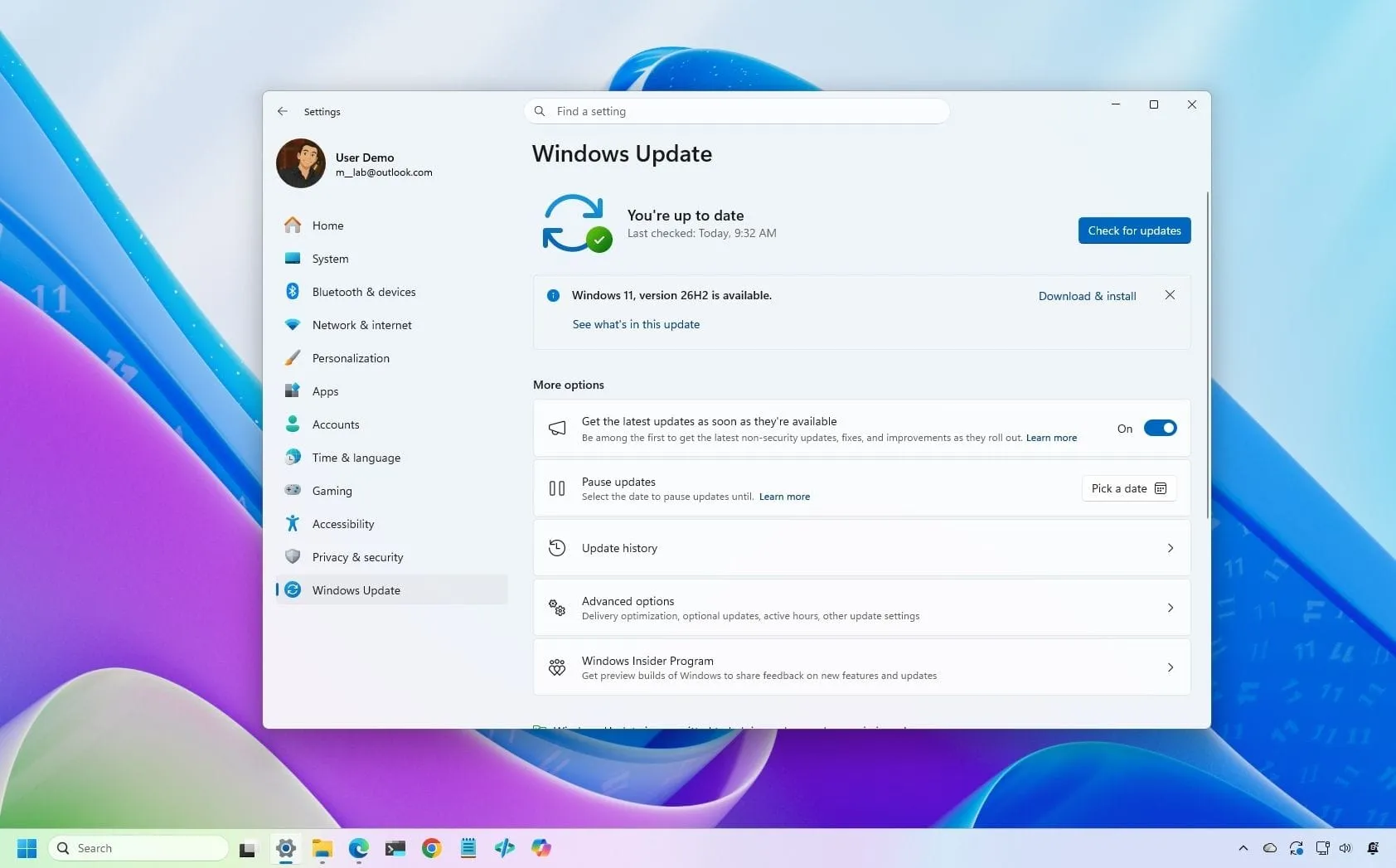
Microsoft is actively rolling out the Windows 11 2026 Update (version 26H2) to compatible devices. While this update is available, users who wish to access it sooner often need to manage the process manually, offering a deeper look into how operating system upgrades work in practice.
The process for deploying this new version is designed to be flexible, but the path a user takes depends entirely on their current operating system. For devices already running version 25H2 or 24H2, the transition to 26H2 is generally a straightforward, non-destructive cumulative update. However, if your hardware is running an older version, such as 23H2, a full in-place upgrade and reinstallation is necessary to complete the journey.
When moving from Windows 10, the system will naturally proceed through the full upgrade process. To ensure a smooth transition and avoid potential hiccups, it is important to remember that the rollout happens in phases, meaning not every device will receive the update immediately.
If you are eager to bypass the waiting period, there are several official methods to manually trigger the upgrade. These options include utilizing the standard Windows Update settings, the Installation Assistant, the Media Creation Tool, or downloading the official ISO file. Choosing the right method depends on your comfort level and current system configuration.
Before diving into any of these methods, a critical piece of advice remains the same: even when performing non-destructive updates, taking a temporary backup before proceeding is highly recommended. This step protects your data in case any unforeseen issues arise during the upgrade.
Choosing Your Upgrade Path
The method you select dictates the type of installation you will perform. Using the Windows Update settings is the simplest route, relying on Microsoft’s automated delivery. For those seeking more control or trying to initiate the process early, the Installation Assistant provides an alternative pathway. This tool is particularly useful for systems running older versions, like 23H2, and helps manage the necessary steps to transition to the new version.
Alternatively, the Media Creation Tool and the official ISO file offer complete control over the installation process. While the Media Creation Tool can be used to create bootable USB media for a complete reinstallation, the ISO file method allows for direct mounting and setup, which can be executed manually. All these options are viable, but users should be aware that using methods that involve creating external media or ISOs typically entails a full system reinstallation, whereas using Windows Update offers the smoothest in-place experience.
Ultimately, whether you opt for an automated update or a manual trigger, the goal is the same: getting to the latest, most secure version of Windows 11. By understanding the various tools available, users can navigate the process confidently and ensure that their files, settings, and applications are preserved throughout the transition.
Buy on Amazon
Credit