Microsoft clarifies Surface Laptop Ultra display specs
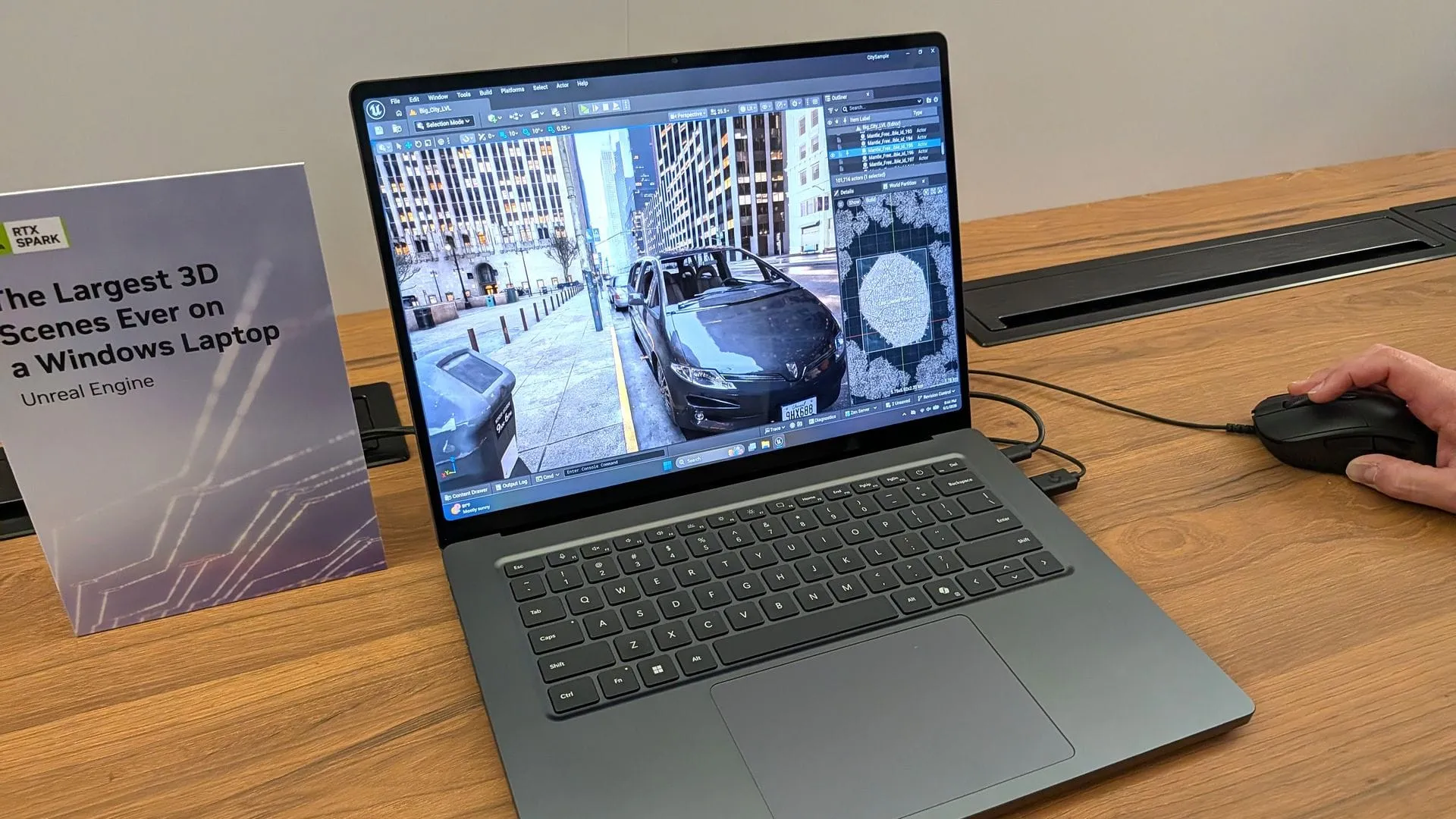
The promise of Mini LED technology is all about precise control—dimming the screen exactly where you need it. Yet, when you look at the display on the Surface Laptop Ultra, a fascinating technical puzzle emerges: does this impressive screen truly deliver on its local dimming capabilities?
Despite the high-end Mini LED panel, many reviewers have noted that the experience can feel underwhelming. Ghosting and blooming issues, coupled with a color contrast that doesn’t quite match the competition, lead some to wonder about the display’s true performance compared to OLED screens and other Mini LED panels on the market.
The core of the debate centers on the dimming zones. The Surface Laptop Ultra boasts 1,344 local dimming zones. While this is a solid number, it falls short of the capacity found in some other premium laptops, prompting questions about how effectively those zones are utilized.
The initial buzz led to speculation about whether the display actually featured local dimming at all. However, Microsoft clarified the technology’s function, confirming that the Surface Laptop Ultra does feature local dimming by default, utilizing 5,400 LEDs across those 1,344 dimming zones. This means the backlight can adjust brightness based on the content being displayed—dimming the areas that are not visible, such as dark areas when a bright window is shown on a black background.
This dynamic behavior, while technically functional, is where the performance hiccups occur. The limited number of dimming zones results in ghosting and blooming, which can make the display feel stuttery rather than perfectly smooth.
Fortunately, users have discovered a way to fine-tune this experience. The local dimming behavior is controlled within Windows Settings under System > Display > Brightness. To maximize performance and minimize these visual artifacts, experts recommend specific adjustments.
For the most effective local dimming experience, it is advised to disable HDR. When HDR is enabled, the backlight becomes more noticeable on dark backgrounds, which exacerbates the ghosting. By turning off HDR, the screen dramatically improves the visual smoothness, though this comes at the cost of peak local dimming performance.
To optimize the display, ensure that both “Change brightness based on content” is enabled and the “Enhanced” display profile is set in Windows Settings. This combination allows the local dimming to function optimally, delivering a more fluid visual experience.
Ultimately, while the technology confirms the presence of local dimming, the execution remains a mixed bag. It is a display that shows potential, but perhaps not the dazzling performance expected of the next generation. Hopefully, future firmware updates will refine this behavior, turning current limitations into future brilliance.
Buy on Amazon
Credit