Microsoft’s 12+ Windows 11 features tested in 2026
We often talk about software updates as mere fixes, but sometimes, the biggest leaps forward happen in the small, often overlooked details—the kind of features that quietly transform your daily interaction with your computer. Microsoft recently spent time testing several new features within the Windows 11 Insider Program, and the results are surprisingly exciting. These aren’t just minor tweaks; they are genuine improvements aimed squarely at giving users more control, better privacy, and a genuinely smoother experience.
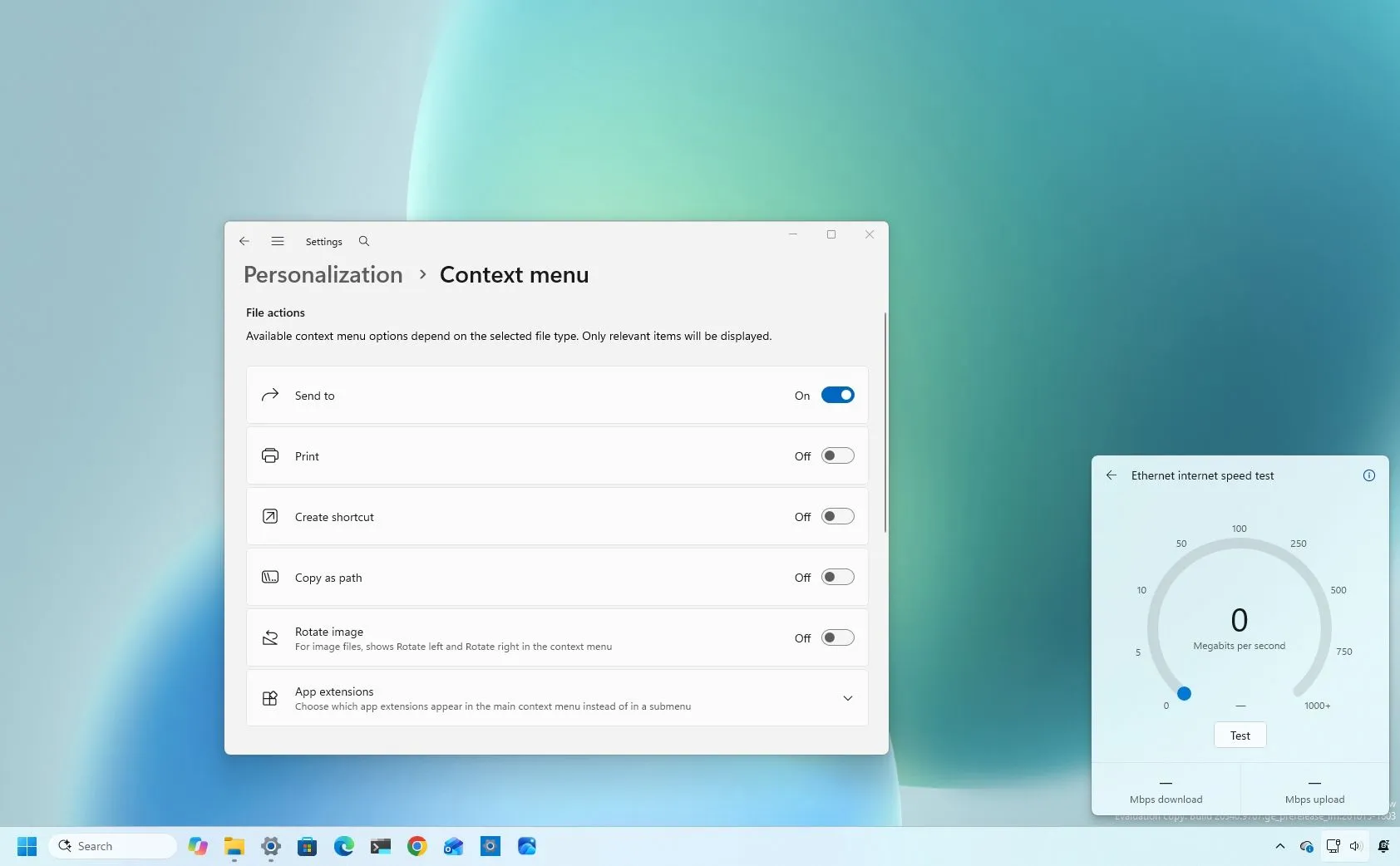
The focus of these updates has been on addressing long-standing frustrations. For example, the often-maligned right-click menu has finally been revamped, offering users granular control over what commands appear, letting them declutter the interface and manage application extensions seamlessly. This change puts the power back in the user’s hands, allowing customization under the Settings and Personalization menus.
Beyond the menu, Windows is integrating utility directly into the desktop workflow. Tired of launching a browser just to check your connection speed? Now, you can run a native internet speed test right within the Quick Settings panel, bypassing the need to leave your desktop environment. This simple addition proves that Microsoft is willing to streamline processes and prioritize speed.
The Start menu, another staple of the operating system, has also received a much-needed makeover. Users can now adjust the Start menu size—choosing between Small, Large, or Automatic layouts. Furthermore, the menu is getting tidier, with the ‘Recommended’ section renamed to ‘Recent,’ and users can now hide profile information and select which sections are visible, giving them fine-grained control over their personalized home screen.
Perhaps one of the most significant advancements is the enhanced privacy controls. Microsoft has introduced per-app permissions for camera, microphone, and location access. This means that traditional desktop applications no longer have blanket access; instead, users can now approve or deny access on a per-application basis. If an app requests permission, it prompts the user, and importantly, existing permissions remain unchanged, ensuring stability while vastly improving security.
The controls don’t stop there. Windows 11 is integrating phone functionality directly into the desktop via Quick Settings, introducing a new Mobile devices flyout. This allows users to manage connected Android phones—checking battery levels, adjusting ringtones, and enabling Do Not Disturb—without context-switching. This seamless integration makes managing multi-device ecosystems far more intuitive.
Even the system’s visual tools have received sophisticated upgrades. The Magnifier feature is now smarter, supporting independent zoom levels for each monitor in extended display modes, preventing magnified views from spilling across screens. Users can lock individual displays while working on others, allowing them to reference content on one screen while actively working elsewhere. This level of control over screen viewing is a game-changer for multitasking.
Finally, the search experience has been decluttered, offering clearer indicators for where search results originate. Additionally, a new setting allows users to control whether web and Microsoft Store suggestions appear alongside local search results. These are not just superficial changes; they are deliberate steps toward making Windows 11 feel less rigid and more responsive. Overall, these updates demonstrate a commitment to making the operating system feel smarter, giving users more control, and delivering genuinely useful features.
Buy on Amazon
Credit