Run free AI locally on your PC in 3 steps
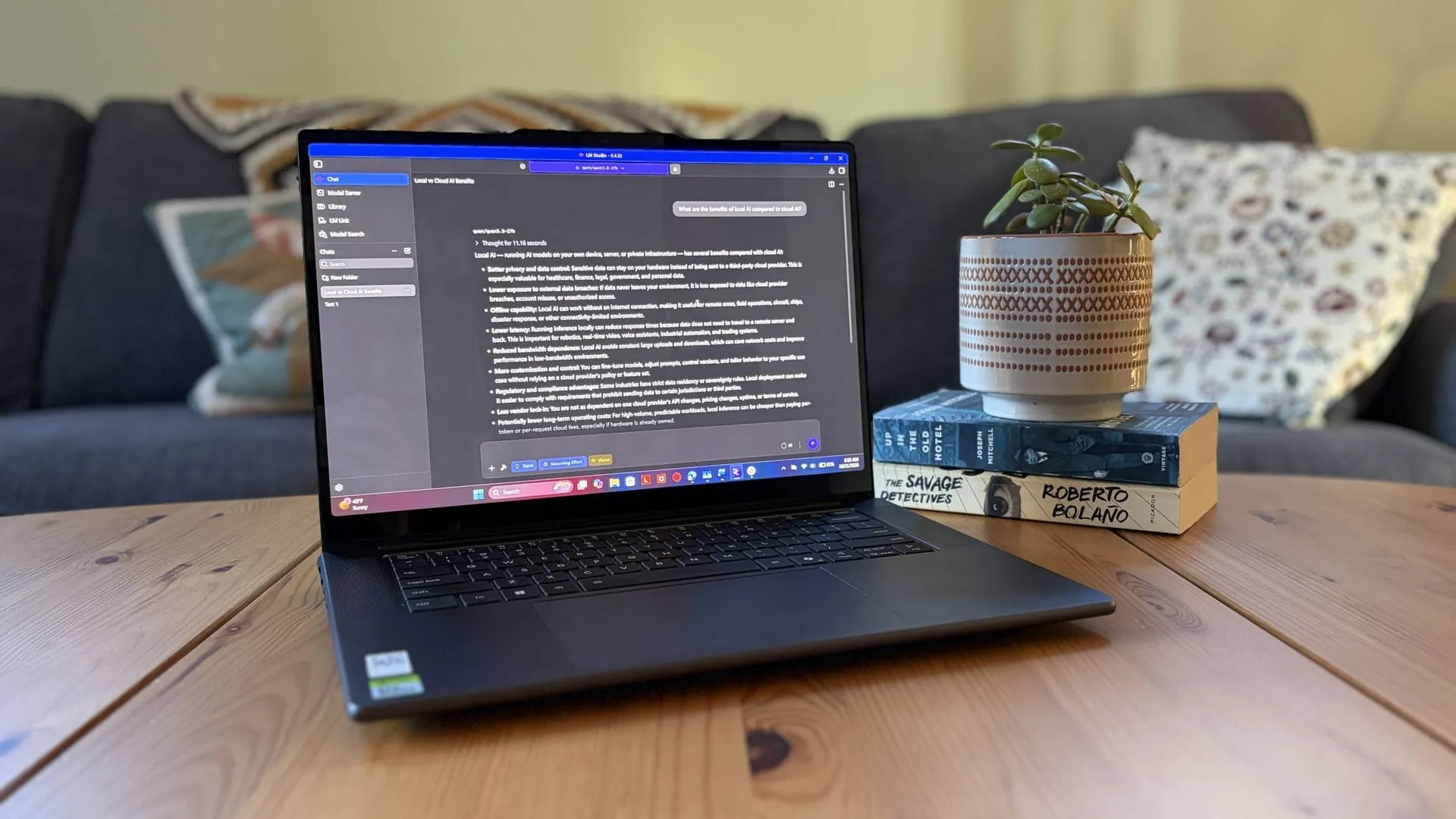
The Local Revolution: How You Can Run AI Directly on Your Laptop
The future of artificial intelligence isn’t just happening in the cloud; it’s coming to your desktop. By harnessing powerful local hardware, users are discovering a liberating shift toward running sophisticated AI agents directly on their personal laptops, offering unprecedented control, privacy, and convenience.
This revolution is powered by modern hardware, like the new NVIDIA RTX Spark chip, which features unified memory. This technological leap allows the GPU to ‘borrow’ system RAM when Video RAM is needed, providing a powerful foundation for running large AI models right on the machine.
Why go local instead of cloud? The answer boils down to three simple factors: external token usage, absolute privacy, and sheer convenience. For those who love to chat, create images, summarize, and handle light tasks, running AI locally removes reliance on costly subscriptions and the constant stream of data traveling across the internet.
The Hardware Hurdle: VRAM is Key
While the concept is simple, the performance hinges on your setup. Fitting an entire AI model onto your PC’s memory, specifically the VRAM on your GPU, is crucial for optimal speed. A powerful GPU matters far more than a powerful CPU when tackling local AI tasks.
The required VRAM capacity scales with the size of the model you want to run:
- For smaller models (3B to 8B parameters), aim for at least 8GB of VRAM.
- For medium-sized models (8B to 14B parameters), aim for 12GB of VRAM.
- For large models (30B parameters or more), you enter workstation territory, often requiring unified memory pools, like those found in specialized laptops.
Running local AI is definitely possible even on a CPU-only setup, but be prepared for significantly slower performance. PC gamers, equipped with powerful GPUs, are often best positioned for this endeavor.
Five Minutes to Local AI
Setting up a local large language model (LLM) is surprisingly straightforward. A novice user can get an agent running in mere minutes, eliminating the need for complex coding or lengthy installations.
The process generally involves a few easy steps:
- Download LM Studio, a free application designed to simplify downloading, managing, and working with local AI models.
- Use the app’s Model Search feature to find and download an open-source model, such as the popular Qwen3.8 model.
- Load the chosen model into the application and start chatting.
LM Studio is an intuitive, clean interface that handles the heavy lifting, making the entire process accessible. By utilizing the integrated search tools, users can easily find models tagged for compatibility and performance, simplifying the often-tricky task of hardware matching.
The Local Advantage
Local AI offers a compelling alternative to cloud services. It means your information stays on your machine, ensuring maximum privacy and avoiding the recurring costs associated with paying per token for cloud AI.
While local models may not always match the peak performance of the largest cloud-hosted models, for the average user, the convenience and control offered by local AI are game-changing. It represents a powerful move toward personalized, private, and independent interaction with artificial intelligence, proving that the power of AI can indeed reside right on your desktop.
Buy on Amazon
Credit
