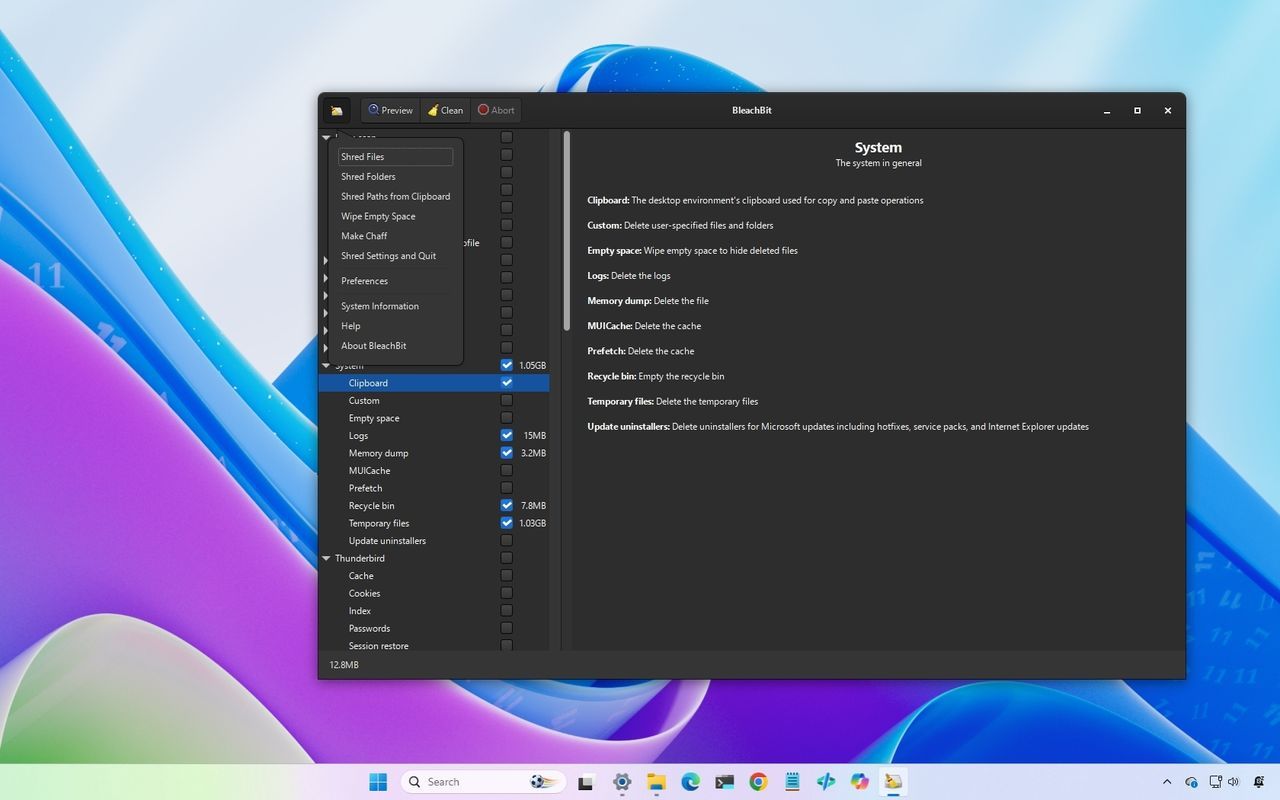
Your Windows 11 machine is powerful, but sometimes it feels like a digital attic stuffed with unnecessary junk. While Microsoft provides built-in tools to help you manage storage, many users find themselves wanting more granular control over the temporary files and cached data hiding in plain sight. This quest for true digital cleanliness often leads users toward specialized third-party utilities, and among them, BleachBit stands out as a powerful choice.
Windows 11 has certainly introduced features like Storage Sense and dedicated settings pages designed to help users reclaim space effortlessly. These tools are fantastic for routine maintenance, managing basic temporary files, and keeping storage usage under control without requiring deep technical knowledge. However, these built-in solutions operate on a broad, automated approach. For those who want to dig deeper into areas like browser history, application caches, system logs, and privacy-related files, a more focused approach is necessary.
This is where tools like BleachBit enter the chat. It isn’t just another simple cleaner; it operates with a philosophy focused on complete user control. As a free and open-source utility for Windows 11, BleachBit allows you to meticulously select exactly which unnecessary files should be removed, offering transparency and avoiding the bundled ads or confusing premium features found in many commercial alternatives.
So, why go beyond the default settings? The real power of BleachBit lies in its ability to handle deep-level cleanup that the operating system doesn’t automatically manage. It tackles temporary files, application caches, and browsing data with precision. Furthermore, it offers advanced capabilities like secure file shredding—which securely overwrites sensitive data before removal, making recovery much more difficult—and the ability to wipe empty disk space on supported drives.
For instance, when dealing with sensitive documents or old files you wish to erase permanently, BleachBit provides a tool that ensures data isn’t just deleted but thoroughly destroyed. This focus on security and control is a major differentiator, particularly when compared to older optimization suites that sometimes tampered with system registries for performance boosts.
Navigating these tools effectively requires a little strategy. A key recommendation is always to use the Preview option first. Instead of instantly deleting files, this feature scans your system and shows you exactly what can be reclaimed and what will be removed. This step ensures you understand the impact of your cleaning choices before any permanent changes are made.
When it comes to routine maintenance, starting with safe categories like temporary files and logs is a great place to begin. Be mindful, however, when clearing browser data or app caches. While these can free up space, deleting cookies might log you out of websites, and removing application cache can sometimes cause programs to take longer to launch the next time as they rebuild those necessary files.
If you are ever looking to prepare a device for resale, simply focusing on the operating system’s factory reset feature is often the simplest and most effective method. And remember, while these tools help manage storage, true performance improvements usually come from addressing other factors, such as ensuring you have adequate memory and minimizing background processes, rather than just deleting temporary clutter.
Ultimately, whether you opt for Windows 11’s integrated management or a utility like BleachBit comes down to your preference for control. If you value transparency, open-source code, and the ability to shred sensitive data without relying on questionable system modifications, BleachBit offers an unparalleled layer of deep maintenance for your Windows experience.
Credit: Windows Central