Test these 4 graphics settings for best MW4 performance
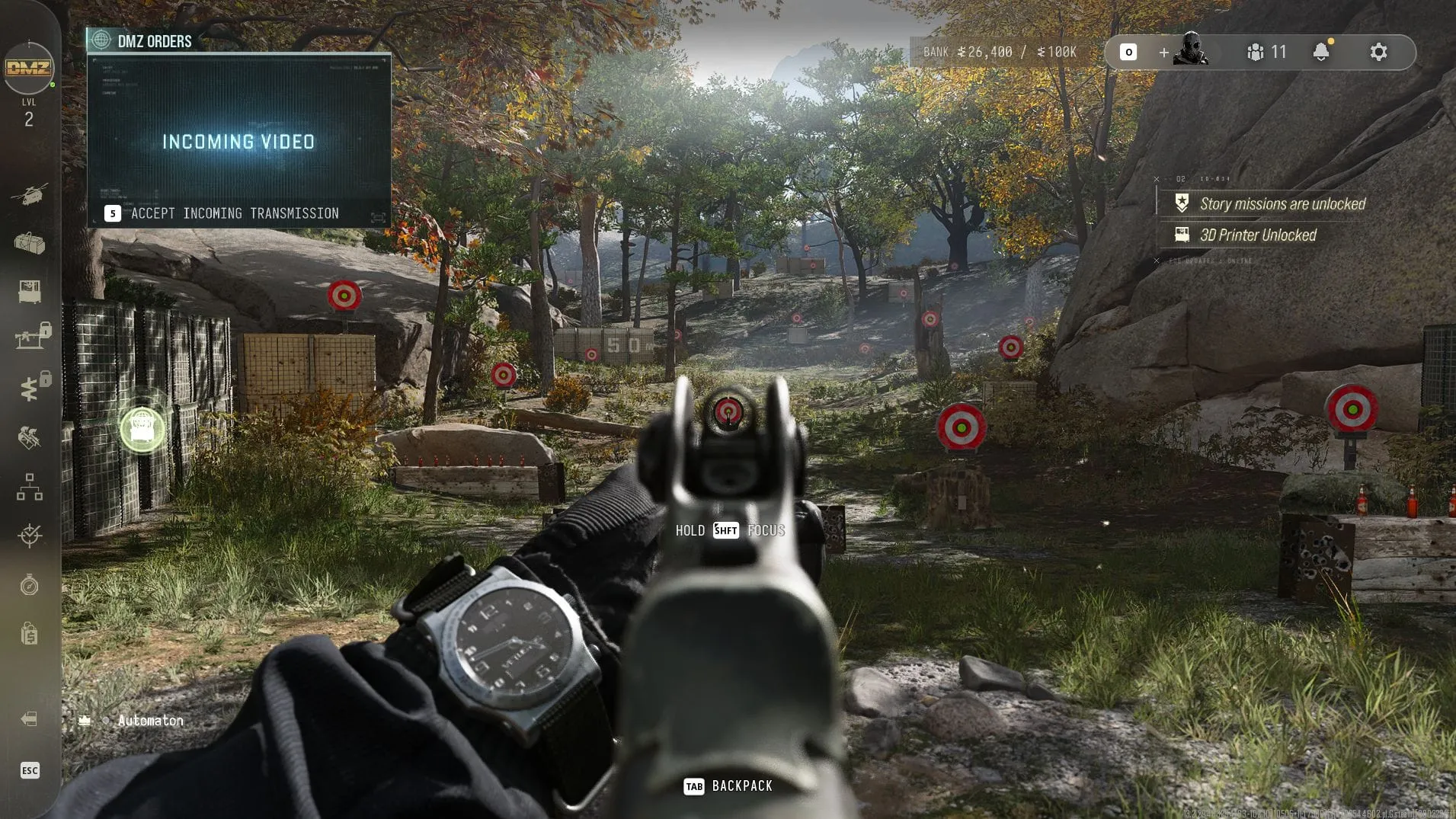
When a new title drops, the first question isn’t about the story—it’s about the visuals. With Call of Duty: Modern Warfare 4, developers have delivered a gorgeous experience. But for those of us seeking maximum performance without sacrificing stunning detail, diving into the settings menu can feel like navigating a visual labyrinth. To cut through the complexity and find the sweet spot between fidelity and frame rates, a deep dive into the graphical adjustments is essential.
We put the game through the wringer, testing every graphical option to see where the real performance gains lay. The results showed that while the game looks exceptional, the engine benefits greatly from targeted adjustments. The key takeaway? There are four specific settings that offer the most significant impact on your frame rate, allowing you to fine-tune your experience based on your hardware and gaming goals.
Before getting into the granular details, the biggest immediate performance boost comes from adjusting the overall preset. If you are running a mid-range setup, the Balanced preset offers a solid foundation. For those rocking high-end rigs, however, the Ultra preset is certainly achievable. The difference between these settings, even on powerful hardware, reveals how much rendering power each option demands.
But for the true optimization connoisseur, the magic happens when you make targeted tweaks. If you want to truly squeeze out extra frames without feeling like you’re sacrificing visual appeal, focusing on the following four settings—found under Graphics > Quality > Advanced Quality Settings—is the most effective path:
1. Detail quality
2. Shadow quality
3. Shadow filtering quality
4. Terrain quality
These settings directly influence how the world is rendered. Increasing Terrain quality brings richer ground surface textures, making the environment feel more tactile. Meanwhile, adjusting detail quality dictates how finely rendered small objects appear. Experimenting with these options allows you to balance visual punch with frame rate necessities.
A fascinating observation emerged when comparing shadow settings: shifting from Normal quality | High filtering to Low quality | Normal filtering provides a noticeable performance gain. Similarly, tweaking the detail and terrain options showed that lowering them simultaneously can yield a substantial frame rate jump. This optimization strategy proves that performance isn’t always a zero-sum game; sometimes, a slight concession in texture detail pays off in smoother gameplay.
Ultimately, the choice between visual fidelity and frame rate comes down to personal preference. For those prioritizing competitive online play and maximum FPS, optimizing for speed—perhaps by leaning into upscaling technologies—is key. But for the cinematic experience of the campaign, retaining higher settings for shadows and detail offers a more polished look. The perfect setting is the one that keeps you playing the game, looking fantastic, and running smoothly.
Buy on Amazon
Credit