Cloud rebuild: Easy PC recovery without USB drives
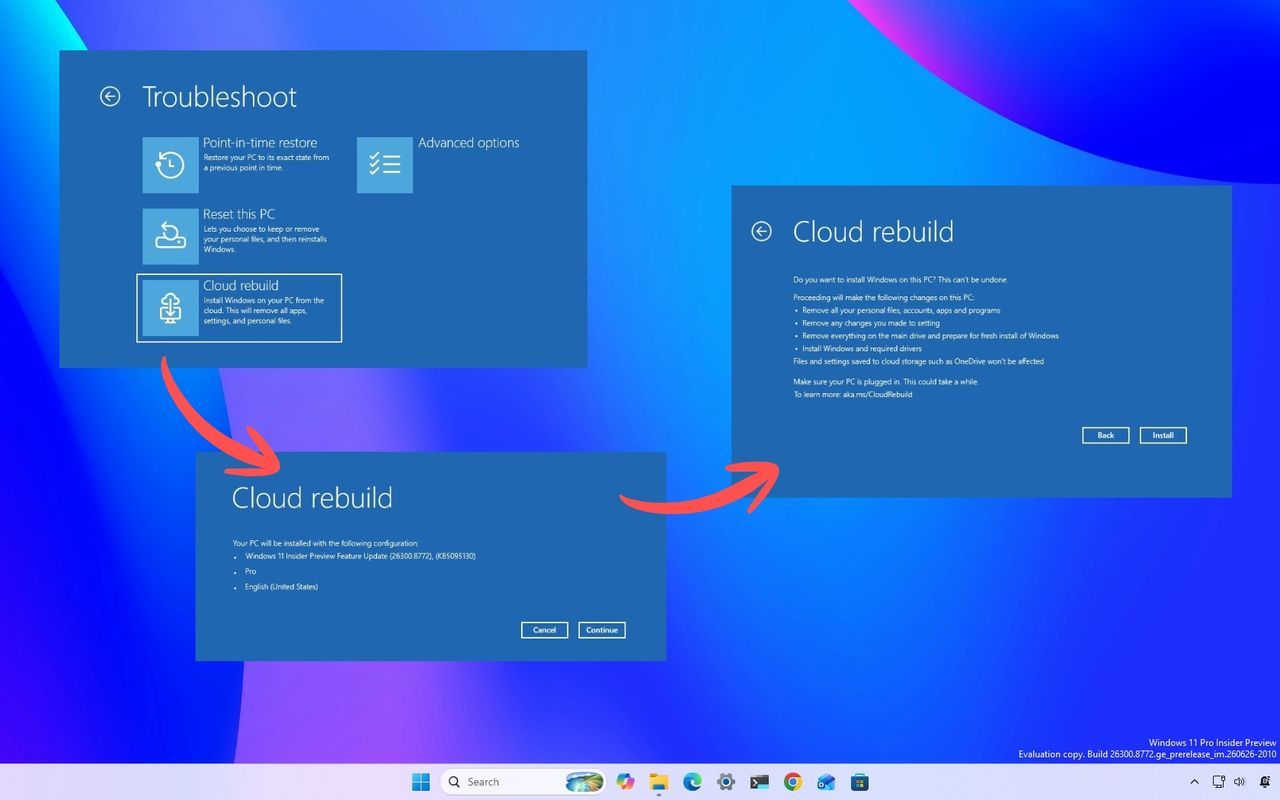
For years, recovering a damaged Windows installation often felt like navigating a maze of recovery options. From System Restore to the classic “Reset this PC,” users relied on local files, specialized USB drives, or custom recovery images to bring their systems back to life. Now, Microsoft is ushering in a new era for device management with the introduction of Cloud rebuild, a feature designed to streamline and simplify the entire process.
Cloud rebuild isn’t just another option; it represents a fundamental shift toward a cloud-first recovery strategy. Instead of relying on locally stored files or external media, this powerful tool aims to recreate a functional Windows 11 environment by downloading all necessary system images and drivers directly from Windows Update and Microsoft’s cloud services.
How does it work? When activated, Cloud rebuild completely reformats the system drive and reinstalls Windows 11 using these remotely sourced files. The result is that the computer boots into the Out-of-Box Experience (OOBE), allowing the user to set up the device as if it were brand new.
This approach stands apart from traditional methods because it bypasses the need for external installation media or trusting the integrity of the existing setup. Cloud rebuild leverages cloud services to ensure a clean slate, making recovery less dependent on local backups and more reliant on Microsoft’s infrastructure.
It is important to understand that while Cloud rebuild offers a fresh start, it is not a simple repair tool. Because the process involves reformatting the system drive, any locally installed applications, user accounts, settings, and personal files stored on that drive will be removed. Therefore, backing up crucial data before initiating the process is essential.
Fortunately, the feature acknowledges this reality by ensuring cloud synchronization remains intact. Files synced with services like OneDrive are not affected and can be restored once the user signs back into their account.
For maximum success during a Cloud rebuild, users should ensure their device remains connected to the internet and plugged into a power source throughout the entire process. Since this operation can take time, and Windows 11 may require several restarts, patience is key to getting the job done right.
This shift reflects Microsoft’s broader vision for managing devices, particularly within large organizations. Cloud rebuild integrates seamlessly with enterprise tools like Windows Autopilot and Microsoft Intune. For managed fleets, this means recovery goes beyond simply reinstalling the operating system; it allows systems to automatically re-enroll, restore policies, and synchronize settings without significant manual intervention.
The goal here is powerful: to move away from managing recovery options through locally maintained images and instead leverage the power of cloud services. This strategy significantly reduces the administrative burden on both end-users and IT administrators alike.
While Cloud rebuild is a step in a larger journey, it doesn’t eliminate all legacy methods entirely. It operates alongside existing tools, signaling a continuous evolution in how Windows devices are deployed and recovered. The future of Windows recovery is clearly moving toward automated, cloud-based solutions that prioritize efficiency and security.
Buy on Amazon
Credit
