
Modernize these 3 classic Windows tools now
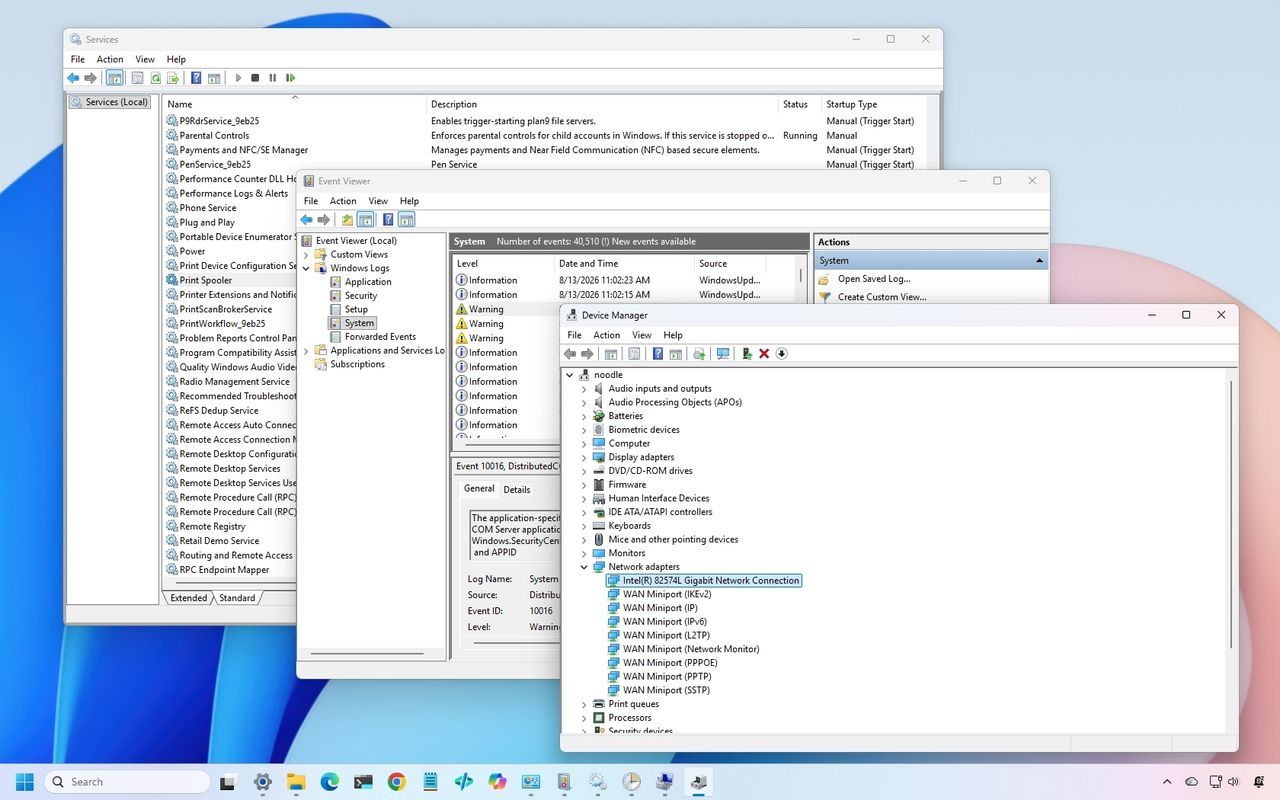
Giving Windows an Update: Why Microsoft Needs to Modernize Its Legacy Tools
For years, the Windows operating system has carried a strange dual identity. While newer aspects of Windows 11 look sleek and modern, deep within the system lie components that still feel tethered to older design philosophies. This split personality—a mix of cutting-edge interface and dated functionality—is slowly starting to change, signaling an important opportunity for Microsoft to evolve its core utilities.
Microsoft has been working behind the scenes to gradually modernize various interfaces, touching areas like the Run dialog, Task Manager, and File Explorer. However, a deeper transformation is needed in some of the system’s most crucial, yet stubbornly traditional, tools. The real focus should be on modernizing these deeply embedded components without sacrificing the essential functionality that power users rely on.
The core philosophy should be one of evolution, not revolution. The operating system doesn’t need a complete redesign; it needs an update to its most foundational administrative tools. This modernization allows for a seamless blend of new aesthetics and decades of accumulated functionality.
A Look at the Legacy Tools
There are several classic utilities that deserve renewed attention, particularly those essential for troubleshooting and system management. Three areas stand out where a modern overhaul could deliver significant user benefits:
Device Manager
Device Manager remains the first stop for diagnosing hardware or driver issues, yet its experience feels notably behind the rest of the operating system. The current workflow relies on navigating a complex tree structure, right-clicking devices, and digging through multiple tabs to find necessary information. A modern approach could transform this into a powerful hardware management hub, featuring intelligent search, better filtering, and a more immediate overview.
Imagine selecting a graphics card and instantly seeing its name, manufacturer, current driver version, status, and quick options to roll back or uninstall—all clearly presented. Crucially, the interface should use modern design principles without hiding the advanced configuration available to administrators and enthusiasts.
Event Viewer
Event Viewer is packed with vital diagnostic information regarding system warnings and crashes. However, finding the specific data needed often requires navigating layers of complexity. This challenge is compounded by the existence of the Reliability Monitor, which provides a high-level timeline of system problems. Instead of maintaining separate experiences, Microsoft could integrate these functions into one unified troubleshooting tool.
A combined interface could allow users to easily search and filter events, group related issues, and instantly identify crashes, driver failures, and service disruptions, making complex diagnostic data immediately actionable for anyone.
Services Console
Services provides essential oversight of system services, their status, and startup types. While the detailed information—such as dependencies and recovery settings—is present in the advanced views, the overall experience still feels dated. The goal here is not to strip away the deep options but to modernize the navigation around them.
A modernized console could introduce powerful search functionality for services, making it simple to locate specific items like Windows Update or networking components. Furthermore, simplifying how dependencies are presented would be a game-changer for troubleshooting. If one service fails because another is down, the system should clearly illustrate that relationship instantly, eliminating the need to hunt through multiple tabs.
Task Scheduler
Task Scheduler offers sophisticated capabilities for automating tasks, yet the user experience remains fragmented. While the basic task creation wizard is straightforward, accessing the full suite of options—triggers, actions, conditions, and history—is cumbersome and difficult to grasp.
The opportunity lies in building a modern interface around this powerful functionality. The goal is to make understanding what a scheduled task does, why it runs, and whether it succeeded significantly easier. This modernization should streamline the process without sacrificing the advanced configuration options that are critical for complex automation work.
The Path Forward
Microsoft doesn’t need to reinvent every classic utility from scratch. The tools like Device Manager, Event Viewer, and Services have accumulated decades of necessary functionality and compatibility requirements. By focusing on a modernized interface—one that preserves advanced options while prioritizing clarity and intuitive navigation—Microsoft can create an experience that is both beautiful and profoundly useful.
This approach ensures that the operating system evolves gracefully. It allows for the gradual roll-out of modern designs, taking existing, indispensable functionality and placing it behind a user interface that aligns with the future of Windows 11. The focus should be on evolving the experience rather than throwing out the history.
Buy on Amazon
Credit