When to use Windows 11 recovery to fix your broken PC
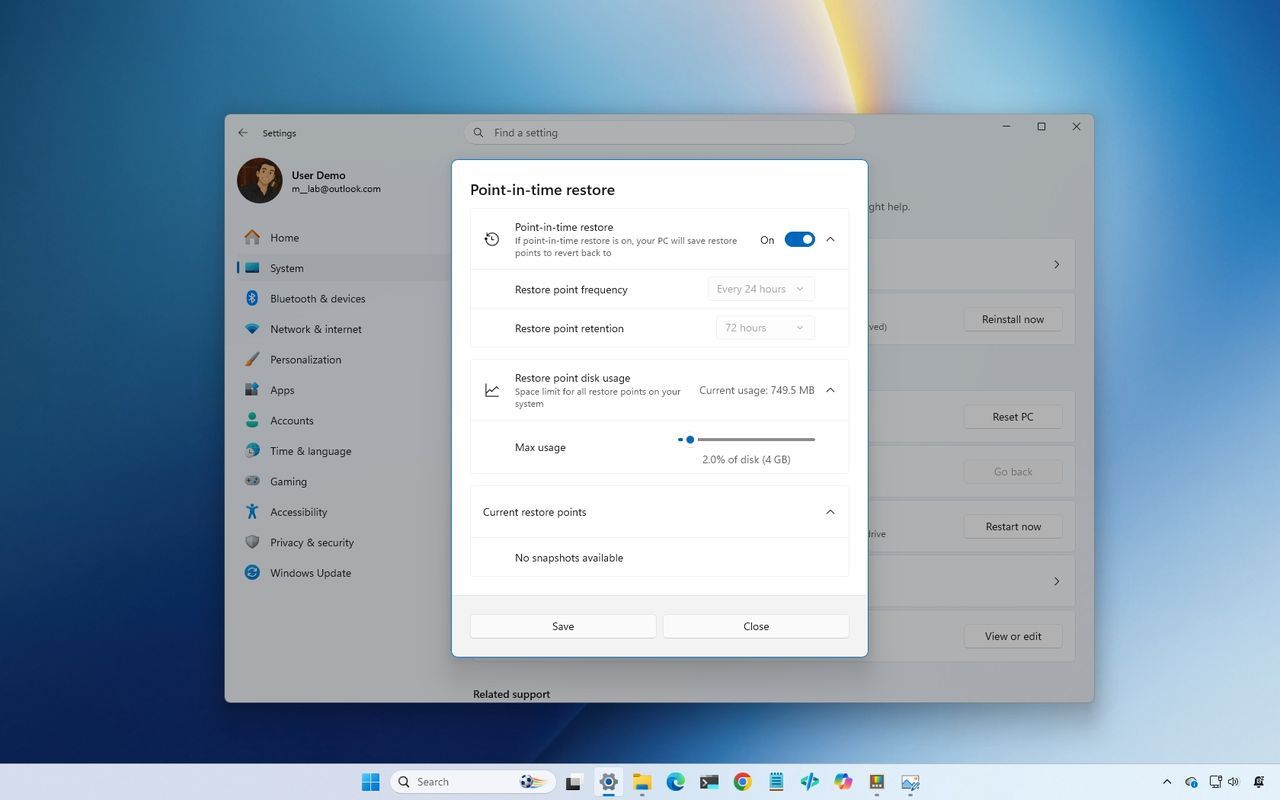
Remember the old days of computer woes? If you were running Windows, a single bad driver or corrupted file often meant the harsh reality of backing up everything and performing a complete operating system reinstall. It felt less like recovery and more like digital triage.
But the landscape has dramatically shifted. Microsoft has quietly transformed Windows 11 into a much more resilient operating system, moving away from that painful single-solution approach. Instead of forcing users into a singular path, Windows now bundles a powerful collection of tools designed to handle virtually any hiccup, offering a safety net that is both vast and, admittedly, sometimes confusing.
This new recovery architecture lives primarily within the Windows Recovery Environment (WinRE)—a dedicated workspace that runs outside the normal installation. It’s where the heavy lifting happens when your computer won’t start normally, giving users access to options ranging from simple fixes to full cloud rebuilds.
The key challenge for any user isn’t just fixing a broken system; it’s knowing which recovery path is the right one. Fortunately, Microsoft has introduced several specialized tools, each suited for specific problems, allowing users to address issues like a failed update, damaged drivers, or a corrupted installation with precision.
For routine troubles—like general instability or file corruption—the first step should often be “Fix problems using Windows Update“. This feature acts as the system’s internal repair crew, downloading and reinstalling the necessary version of Windows 11 directly through the update process. The beauty here is that it attempts to restore the operating system without forcing you to reinstall applications or losing your personal files, making it the least disruptive option available.
When simple repairs fall short, the next level of intervention is “Reset This PC“. This option gives users a choice: they can choose to keep their personal files—pictures, documents, and settings—while wiping installed applications and system configurations. Alternatively, if you are preparing a device for a new owner or want a complete fresh start, you can opt to remove everything and perform a clean installation.
For those who need to dive deep into system rebuilds or face persistent performance issues, “Cloud rebuild“ emerges as a powerful option. This tool reformats the operating system partition and downloads a fresh image directly from Microsoft’s servers, ensuring a truly clean slate free from local file corruption. It’s especially helpful when dealing with severely damaged installations or failed reset attempts.
Beyond massive overhauls, the system offers fine-tuning mechanisms like System Restore and Startup Repair. System Restore creates restore points, essentially snapshots of your system state, allowing you to roll back changes—like a faulty driver installation or registry tweak—without touching your personal data. It’s often the quickest fix for software conflicts.
If a recent update introduces instability, there is also the handy option to Uninstall Updates, letting users remove problematic cumulative or feature updates that may have introduced bugs. Furthermore, troubleshooting elusive problems often involves entering Safe Mode, which strips away non-essential drivers and software, isolating whether a third-party application or driver is the culprit.
And for those grappling with boot failures, Startup Repair steps in. It scans for damaged boot files and corrupted system data, attempting to automatically fix common startup issues that leave the computer stuck before the desktop ever appears.
Perhaps the most forward-thinking addition is Quick Machine Recovery. This feature leverages Microsoft’s cloud services to automatically enter the recovery environment, download necessary remediation packages, and attempt repairs without requiring user intervention—a true hands-off fix for frustrating boot issues caused by updates or drivers.
Ultimately, this layered system shows Microsoft’s commitment to making Windows 11 more resilient. While the sheer number of options can feel overwhelming, the goal is clear: moving from complicated manual troubleshooting to an automated safety net that anticipates problems. The next evolution of recovery will focus on making these tools intuitively understandable, ensuring that when a hiccup occurs, the solution is as smooth and swift as possible.
Buy on Amazon
Credit