
Disable distracting Windows 11 features for a calmer OS
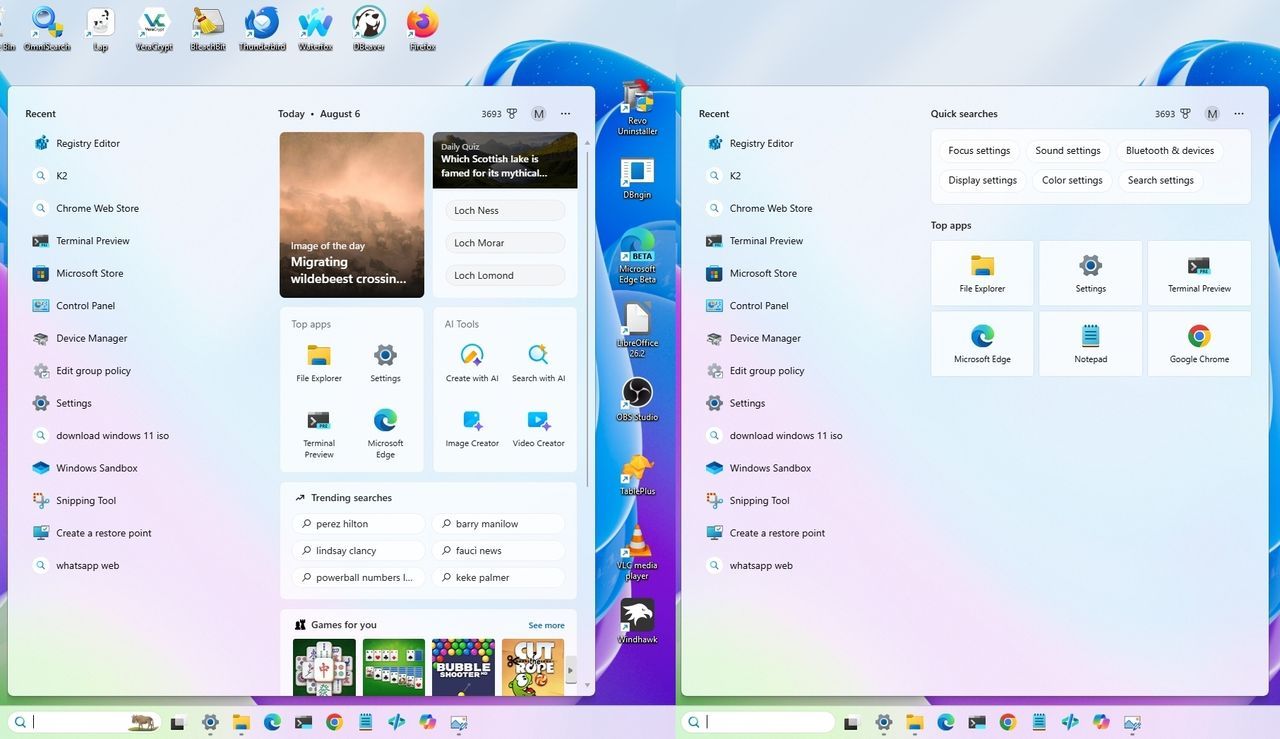
In the modern digital landscape, we are constantly bombarded by notifications, suggestions, and visual clutter designed to capture our attention. If you’ve ever felt that your operating system is more of a distraction than a tool, you are certainly not alone. I’ve found that the secret to unlocking true focus on Windows 11 isn’t about adding more features—it’s about strategically removing the ones that compete for our precious attention.
By making a few intentional tweaks, you can transform your desktop from a busy hub into a quiet workspace. The goal is simple: let your work take center stage while letting the operating system quietly handle what truly matters.
Here are seven essential settings I disable on every fresh Windows 11 installation to create a calmer, more productive environment:
7 features worth turning off for a calmer desktop
These changes aren’t about removing useful functionality; they are about silencing the incessant noise. When you combine recommendations, badges, alerts, and constant updates across the system, Windows 11 starts to feel much busier than it needs to be. By addressing these specific areas, we reclaim control over our workflow.
1. Taming the Lock Screen
The lock screen should serve one purpose: letting you know it is time to sign in. I ditch the constant stream of sports scores, market updates, and suggested content that appear before I even reach my desktop. To achieve this minimalist look, I disable the Widgets feature and switch to a static image.
2. Quieting the Taskbar
While quick access is convenient, constantly live updates are disruptive. Removing the Widgets icon from the Taskbar keeps the interface quieter. This doesn’t mean losing access; you can still open the Widgets panel instantly using the keyboard shortcut Windows key + W.
3. Stopping the Notification Assault
Toast notifications, while useful, often interrupt deep work. To eliminate this interruption, I utilize the Do Not Disturb setting in the system settings. This allows me to manage distractions effectively without completely shutting off communication; I still have access to review all alerts when I am ready.
4. Simplifying the Start Menu
The Start menu is a launching pad, not a content feed. I prefer using it for pinned applications rather than suggestions and recent files that constantly pull my focus. To achieve this cleaner look, I disable all automated recommendations:
- Turn off the Show recently added apps toggle switch.
- Turn off the Show recommended files in Start, recent files in File Explorer, and items in Jump Lists toggle switch.
- Turn off the Show recommendations for tips, shortcuts, new apps, and more toggle switch.
5. Focusing the Search Experience
When you search for files or settings, you want immediate answers, not a barrage of web highlights, quizzes, and trending news. To ensure the Windows Search experience is purely about finding local content, I turn off the web highlights:
- Open Settings.
- Click on Privacy & security.
- Click the Search page.
- Turn off the Show search highlights toggle switch.
6. Eliminating Taskbar Badges
Those small counters or dots that appear on application icons—Taskbar badges—are designed to create urgency. I find they encourage checking apps I don’t immediately need to open. Disabling these badges keeps the Taskbar clean and allows me to control exactly when I decide to check for updates or unread messages.
7. Decluttering the Desktop
A crowded desktop is a distraction waiting to happen. My final tip is simple: hide the desktop icons entirely. Right-click on the desktop, select View, and uncheck the option to show desktop icons. This clears up your workspace while ensuring that all files are still easily accessible within File Explorer.
By applying these small adjustments, you don’t sacrifice features; you simply curate your environment. The result is a Windows 11 experience that remains powerful and capable, but feels significantly calmer, letting you focus on what truly matters: your work.
Buy on Amazon
Credit